Connections Solver & Helper
Use this Connections helper to sort 16 words and keep track of your tries. Group lookup searches the archive’s verified answer lists.
Your 16 words
Commas or new lines between words. Case and order don’t matter.
Four groups of four
Your board appears here
Add 16 words, then pick four at a time and save each try with the feedback from your game.
How to use the Connections Solver
Put the 16 entries from a Connections board in the input above and choose what you want to do. Sort it yourself opens a workspace for testing ideas and recording attempts. Look up the groups checks the entire set against archived boards with word lists. You can keep using the manual workspace for an unrecognized set.
- Focus a tile
- Use the arrow keys to move between entries.
- Pick a word
- Press Space to include or remove the focused tile.
- Move it
- Use Shift and an arrow to change the order.
- Keep a record
- Save the selected four and add the game’s feedback.
Enter 16 tiles in the Solver
Separate tiles with commas or put each on its own line. Type a phrase such as paper clip together. A space in the middle belongs to the same tile. Copy its exact spelling if you plan to look it up. The Solver accepts different orders and capitalization and compares inputs after normalizing case and spacing.
If the Solver counts fewer than 16, compare the input with the original grid row by row. A missing separator can merge two tiles. If the Solver names a duplicate, fix the repeated item in the field and choose Use these words when the count is correct. That keeps the entries you already checked.
Use the board as a scratchpad
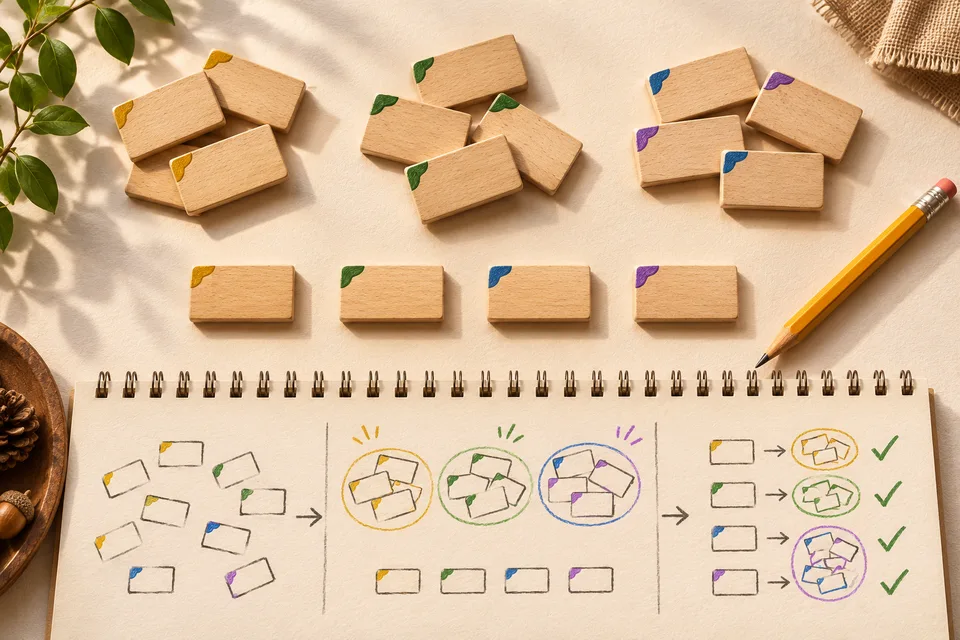
Move related entries closer together. Pick the four words you would submit and choose Save this try. When you have feedback from your game, record Correct, One away or Not a group for that try. The manual mode uses the feedback you enter. A correct group can be assigned a color and set aside, leaving its words out of the unsolved pool.
When the game says one away, keep that guess visible as a reference. Mark the three entries that most cleanly fit your rule and compare alternative fourth entries on the scratchpad. If your replacement always depends on a different meaning, revisit the rule first. Saving a second idea here lets you compare the two before spending a guess in the game.
You can undo a move, revise recorded feedback, or return to a previous arrangement in the same browser. The saved board belongs to the device and browser you use. Keep the page open if you are working in a browser that clears site storage when you close it.
Understand the result of a board lookup
The Solver compares all 16 inputs during a lookup. A match leads to the archived explanation. If several records match, pick the puzzle number you meant to check. The Solver result belongs to that puzzle even when the tiles are arranged differently on your screen.
If the Solver finds no match, your tiles and attempts stay available. Check punctuation, spelling and the full phrases first. Some dates have written clues and a recap alongside the archive listing. Use the date and number search for those and keep the Solver open for manual sorting.
Try the tools with a made-up board
Use Made-up example to practice selecting tiles, saving a guess and giving it feedback. The sample is also a way to see how your own puzzle behaves when the archive does not recognize all 16 words. If you prefer a nudge about the real game, read today’s Connections hints one color at a time.
Work through two possible guesses on the same board
Keep overlaps in plain sight. Suppose four candidates seem to be tools carried in a garden shed and one of them also completes a phrase you recognize. Put the first three together and leave the flexible word on its own. Make a second pile for the phrase candidates. Try reading the phrases aloud with and without that word. This helps you see which group can really afford to give it up.
When you commit a group in the game, record the result in the Solver before rearranging the tiles. You can see which four you already tried even after they move out of their original positions. For a saved attempt with the wrong feedback, use Change on that try. Its tiles and the rest of the layout stay available while you update the entry.
Connections Solver FAQ
Does the Connections Solver check whether my guess is right?
In manual mode you enter the feedback that you received from the game. The Solver organizes the entries, saves the try and lets you set aside a solved set when you mark it correct.
Can I return to a Solver board after closing this tab?
Your browser keeps the draft on this device when site storage is available. Return with the same browser and keep the site’s data to pick up where you left off. Another device starts with its own draft.
Can the Solver find matches if I rearrange the entries?
The lookup compares the entire set, so rearranging the tiles does not change its matches. Check the letters and punctuation of the entries if a board you expect the Solver to recognize produces no match.